Markdown is Everywhere — endless use-cases. If you write at all, compensated or not it's a staple.
Markdown is a simple way to write structured text with plain characters — headings, lists, links, emphasis — that still looks like a normal document when you open it in Notes, a blog, or a coding tool.
You do not need to be a developer. If you have ever typed **bold** in a Discord message, or pasted a checklist into GitHub, you have already brushed against Markdown.
This post is a practical tour: what it is good for, where it frustrates people, which apps are worth knowing (including iA Writer), how it pairs with AI tools like Cursor, and where to keep a cheat sheet handy.
What Markdown actually is
Markdown is a lightweight markup language: you write in a plain .md file (or a text box that accepts Markdown), and software turns those cues into formatted HTML or a polished preview.
Examples you will recognize:
# A heading

A short paragraph with **bold** and *italic*.

- List item one
- List item two

[Link text](https://example.com)
That same file can become a blog post, a README, a client brief, meeting notes, or the prompt you feed an AI — without locking you into Word, Pages, or Google Docs formatting quirks.
Official / canonical references
- Considering this is the guy who developed Markdown, I'd go here first
- Markdown Guide — Getting Started
- CommonMark specification (the clearest “what counts as valid Markdown” baseline)
- GitHub Flavored Markdown (tables, task lists, fenced code — what many tools quietly use)
Why people (and sites) keep choosing it
Pros
- Portable — One
.mdfile opens in dozens of apps. You are not trapped in a proprietary format. - Readable as plain text — Even without a preview, a Markdown draft is skimmable. That matters in email, git diffs, and phone editors.
- Fast structure — Headings and lists are keyboard-cheap. Ideal for outlines, shot lists, and trip notes.
- Web-native — Blogs, docs sites, and many CMSes (including this site’s Markdown blocks in Wagtail) render it directly.
- AI-friendly — Models are trained on Markdown. Asking Cursor, ChatGPT, or Claude for “a blog draft in Markdown” usually returns something you can paste with almost no cleanup.
- Version-control friendly — Diffs are line-based. Photographers who also keep a small git repo for drafts get history without fighting binary
.docxfiles. - Low ceremony — No ribbon UI required. Write first; style later (or never).
Cons
- Not one perfect standard — “Markdown” varies: CommonMark vs GitHub Flavored vs app-specific extras (footnotes, wiki links). A file that looks perfect in one app may render oddly in another.
- Weak for complex layout — Multi-column magazine pages, tight print design, or heavy branding belong in InDesign / Affinity / a proper page builder — not Markdown.
- Images are references, not embeds in the file — You link or attach images; the
.mditself stays text. Great for portability, annoying if you expect “everything in one file” like a Word doc with pasted photos. - Easy to over-nest — Deep heading trees and giant tables become hard to edit on a phone.
- Preview ≠ publish — What you see in iA Writer may not match your site’s CSS until you paste into the CMS and check.
- Collaboration habits differ — Teams living in Google Docs comments will find Markdown workflows less “comment on this sentence” unless you add another tool (GitHub PR review, Notion, etc.).
Honest summary: Markdown wins for writing and moving text around. It loses when the deliverable is the designed page.
Note: Having used for resume creation IMO it's the way to go. Yes, making the page look nice requires some tweeks but for that specific use- a simple 1 or 2 PDF works. No need for an expensive Adobe product unless you live in that ecosystem.
Everyday uses (not just websites)
| Use | Why Markdown fits |
|---|---|
| Blog / CMS drafts | Paste into a Markdown block; keep the master file offline |
| Field notes & shot lists | Fast headings + checklists on iPhone/iPad |
| Client one-pagers | Clear sections without fighting Styles |
| README / project notes | Standard for software; works for creative pipelines too |
| AI prompts & replies | Structure instructions; get structured answers back |
| Meeting notes | ## Decisions / ## Next beats a wall of text |
| Email drafts | Write in Markdown, paste as plain or convert if needed |
Nomadic Shutter angle: trip journals, gear notes (Camera Bag), and long-form blog pieces can all start as the same kind of file — then the website is just one destination.
Apps worth knowing
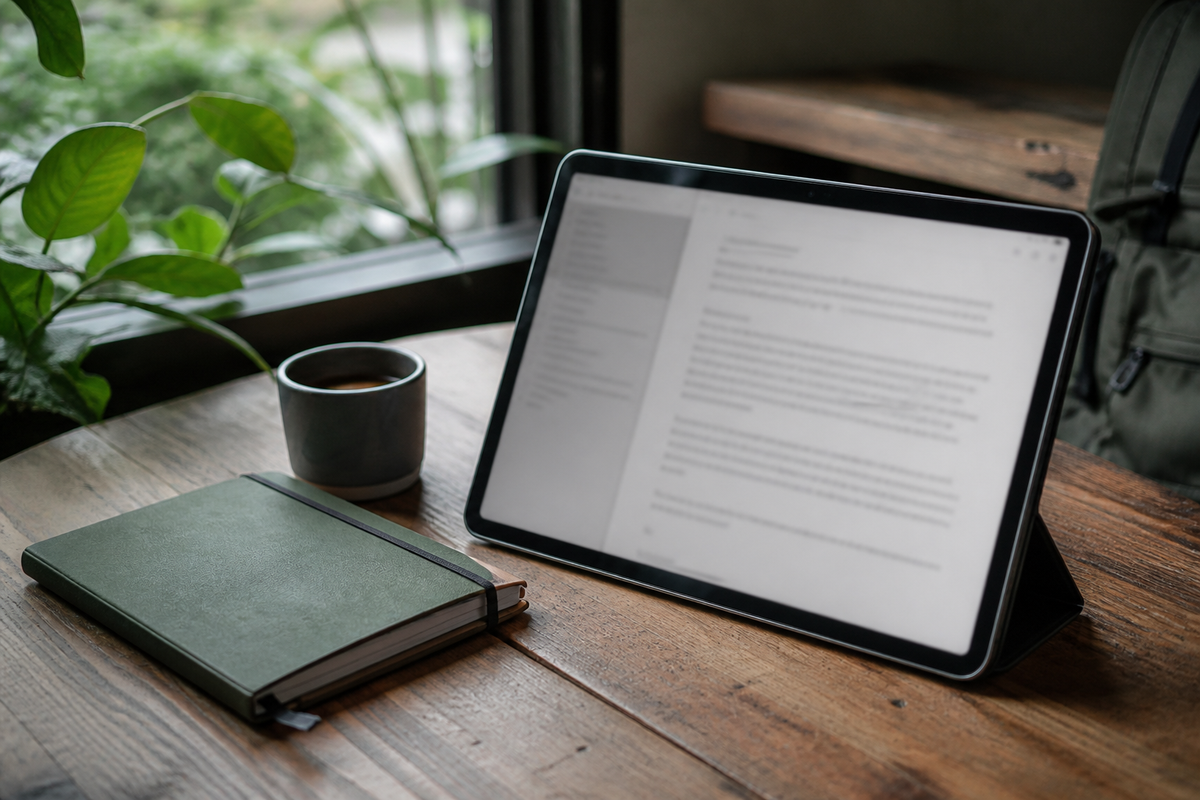
iA Writer
Focused, distraction-light writing. Strong on plain-text discipline, library organization, and cross-device sync. Excellent if you want Markdown to feel like writing, not coding. Has a clear Markdown guide in their docs and exports cleanly.
Other solid options
- Obsidian — Local vault of linked notes; power-user friendly; great for a personal knowledge base.
- Typora — WYSIWYG-ish Markdown (preview as you type).
- Bear — Polished Apple-ecosystem notes with Markdown-ish syntax.
- VS Code / Cursor — Full editor + preview; best when drafts live next to a website project.
- Apple Notes / Google Docs — Fine for life admin; not ideal as your Markdown source of truth.
Pick based on habit: iA Writer for prose-first, Obsidian for linked thinking, Cursor/VS Code when the draft sits beside code or a CMS repo.
Markdown + AI (including Cursor)
AI tools speak Markdown fluently. That is not a gimmick — it is a workflow.
Patterns that work well
- Draft → refine — Ask for a Markdown outline, then expand section by section.
- Paste with intent — “Return only Markdown, no preamble” keeps replies paste-ready for Wagtail or iA Writer.
- Edit in place — In Cursor, open a
.mddraft in the project, describe the change, and let the agent revise headings, add a pros/cons table, or insert link lists without leaving the file. - Cheat-sheet prompts — “Convert this outline to GitHub-flavored Markdown with a table” is a reliable instruction.
- Keep human voice — Use AI for structure and research scaffolding; rewrite the lines that must sound like you.
Caveats
- Models invent links. Verify every URL before publish.
- They mix Markdown dialects (especially tables and footnotes). Preview on your site.
- Long posts still need your eye for pacing, accuracy, and whether an image earns its place.
For this site’s stack: a draft can live in the repo, get edited with Cursor, then land in a Wagtail Markdown stream block — same language from notebook to public page.
Cheat sheets (bookmark these)
Keep one open until the syntax becomes muscle memory:
| Resource | Best for |
|---|---|
| Markdown Guide — Basic Syntax | Everyday headings, lists, links, images |
| Markdown Guide — Cheat Sheet | One-page quick reference |
| CommonMark Help | Short interactive reference |
| GitHub writing cheat sheet | Tables, task lists, code fences |
| Adam Pritchard’s Markdown Cheatsheet (GitHub Gist) | Compact community classic |
| iA Writer — Markdown | How iA implements syntax |
Print or pin the Cheat Sheet link; use GitHub’s page when you need tables.
A tiny “good enough” starter kit
# Title

One-sentence hook.

## Why this matters

Short paragraph.

## Pros

- Point
- Point

## Cons

- Point
- Point

## Links

- [Name](https://example.com)

## Next step

What you want the reader to do.
Save as something-useful.md. That is enough for 80% of drafts.
Bottom line
Markdown is not a religion. It is a practical interchange format for people who write a lot and publish in more than one place: notebooks, blogs, AI chats, and code-adjacent tools like Cursor.
Use it when clarity and portability matter. Skip it when the layout is the product. Keep a cheat sheet nearby for a week — then you will mostly stop needing it.